Exclude an application from conversation detection in Claritalk Desktop
≈ 2 min read
Why exclude an application?
With Conversation Detection, Claritalk Desktop monitors whether your microphone is in use. As soon as an application activates your microphone, Claritalk Connect asks if you want to capture the conversation.
If you sometimes use your microphone for something you don't want to record, you can exclude that application. For example: you're talking with Wally in your browser and you don't want Claritalk Connect to ask you to capture the conversation. In that case, exclude the browser, for example Microsoft Edge.
An excluded application will no longer trigger conversation detection when it uses your microphone. For all other applications, detection continues to work normally.
Exclude an application
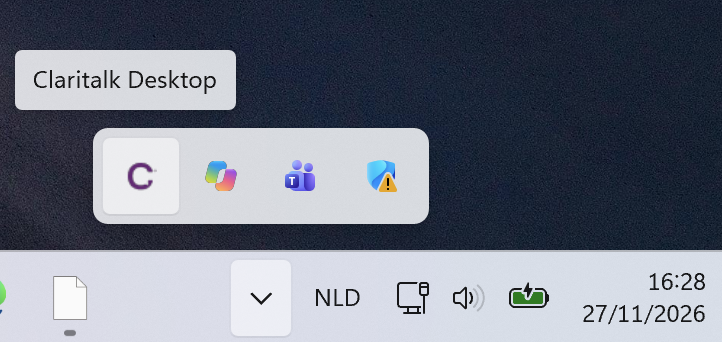
- Double-click the Claritalk Desktop icon in the bottom right of your screen, in the hidden icons in the taskbar.
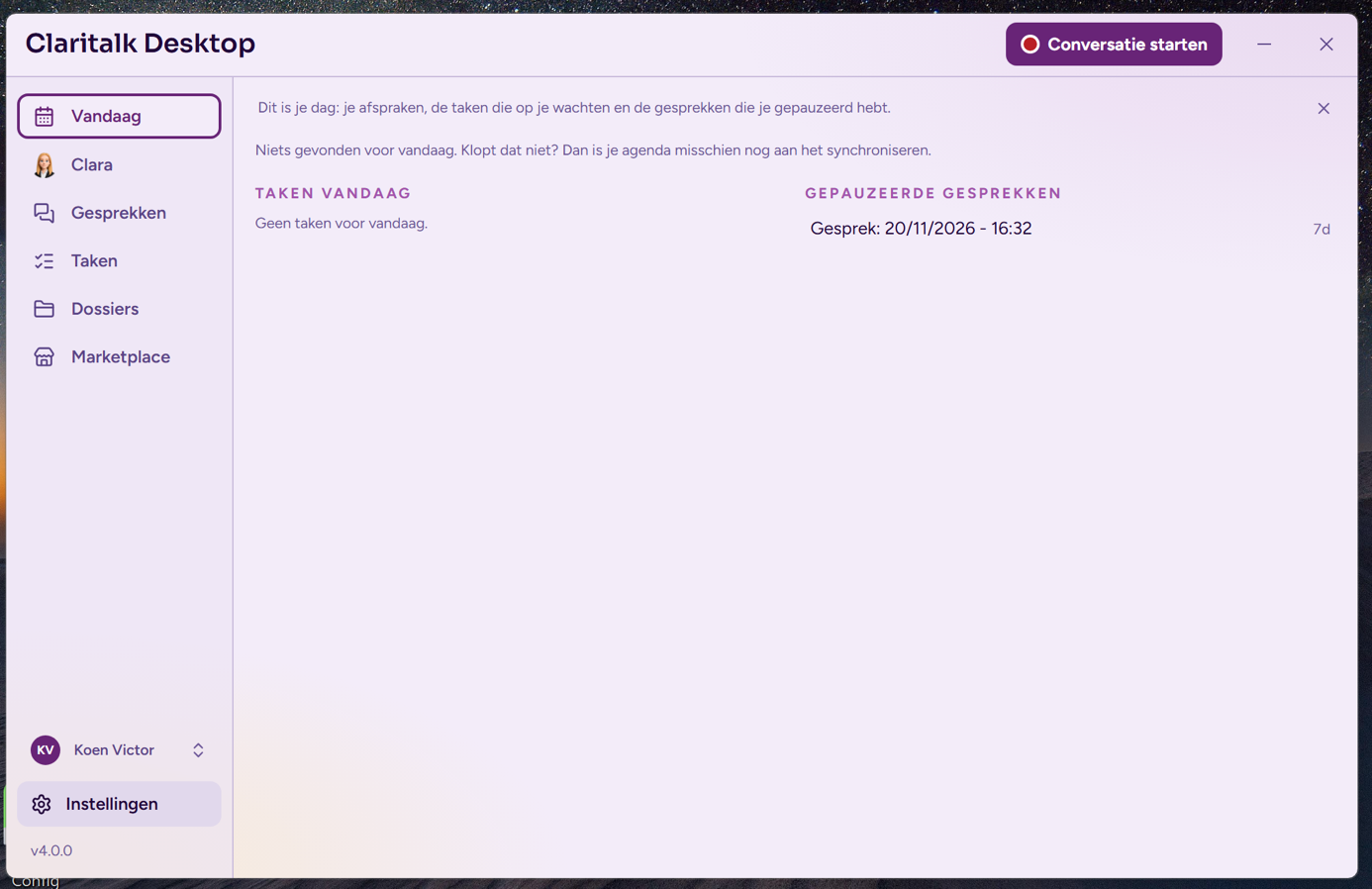
- In Claritalk Desktop, click Settings in the bottom left.
- Find the Conversation Detection section.
- Start the application you want to exclude and make sure it uses your microphone. This way it will appear in the list in the next step.
- Click Add Application under Excluded Applications.

- Click the application you want to exclude. For example, Microsoft Edge is listed as
msedge. - Don't see the application in the list? Click Browse and select the application's program file.
The application is now listed under Excluded Applications. Claritalk Connect will no longer ask you to capture a conversation when that application uses your microphone.
Good to know
- If you exclude your browser, this applies to everything that uses your microphone in that browser. If you hold online meetings in that same browser, Claritalk Connect will no longer ask to capture the conversation there either. You can always start a conversation manually with Start Conversation.
- If you want an application to be detected again, remove it from the Excluded Applications list.