Approve word corrections
≈ 2 min read
Claritalk learns your company's terminology through the terminology list. Users don't need to fill that list themselves: they suggest a correction from their report, and you decide whether it applies to everyone.
How to approve a suggestion
- Open Word corrections
Click Word corrections in the menu on the left. You'll see a table with the incorrect word and the correct word for each suggestion.
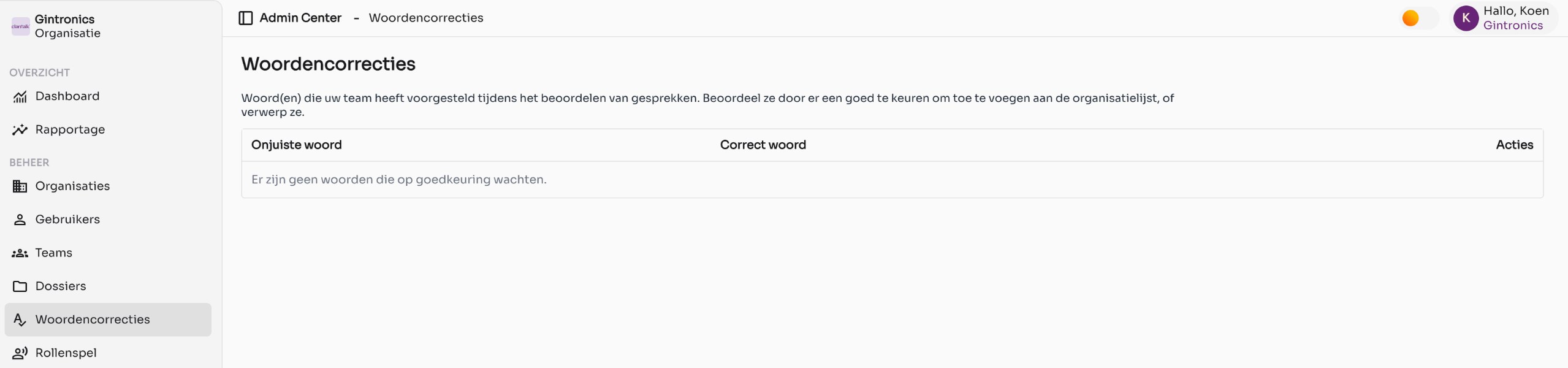
The queue with suggested word corrections. Nothing is waiting for approval here yet. - Assess the suggestion
Check whether the correction is accurate and general enough to apply to the entire organization. A person's name from a single call usually doesn't belong there; a product name or technical term does.
- Approve or reject
Use the buttons under Actions. An approved word appears in the terminology list on the organization page and will be applied in all new transcripts from then on. A rejected suggestion disappears from the queue.
Good to know
- How a user corrects and suggests a word is explained in the article Correct a misheard word in your report in the Usage section.
- You can also add or remove words yourself through the terminology list on the organization page.
- In addition to your own list, Claritalk also applies platform-wide corrections. If you want to use only your own list, enable Disable platform-wide word corrections on the organization page.
- Corrections apply to new transcripts. Existing reports are not adjusted retroactively.