
How the Claritalk Teams bot works
≈ 5 min read
The Teams bot takes notes in your Teams meetings, without you having to start anything yourself. This article explains when the bot joins, what everyone in the meeting sees, and how to prevent the bot from joining if you don't want it to.
- Microsoft Teams only
- Requires Outlook integration
- Can be enabled per organization
Which meetings does the bot join?
After you connect your Outlook calendar to Claritalk, Claritalk checks your calendar for which Microsoft Teams meetings you are invited to. The assistant joins those meetings to take notes.
- Only meetings with a Teams link. Zoom and Google Meet meetings are skipped.
- You are invited, or you scheduled the meeting yourself.
- You have accepted, tentatively accepted, or not yet responded.
Claritalk does not check whether you are actually present. This is intentional: the behavior remains predictable, and those who join late won't miss anything. Soon you'll also be able to ask Claritalk: "What did I miss?"
Not planning to participate? Then decline the meeting in Outlook. A declined meeting disappears from your calendar, and the bot won't join.
Meeting flow
The bot is scheduled in advance based on your calendar. Here's what a meeting with the bot looks like:
| Time | What happens |
|---|---|
| Beforehand | Scheduled from your calendar Claritalk schedules the bot for the Teams meetings in your calendar. If the meeting is canceled or removed from your calendar, the bot is canceled. |
| −2 min | The bot signs in Two minutes before the start, the bot requests access to the meeting. You don't need to admit it at that moment. |
| Admitted | Transcription starts Transcription only begins after the bot is admitted to the meeting. While it's in the waiting room, nothing is recorded. |
| After | Report in Claritalk After the meeting, you'll find the notes and report in Claritalk. |
Visible to everyone
The bot participates as a regular participant with the name "Claritalk's Assistant". Everyone in the meeting sees it in the participants list. So nothing happens secretly: all participants know that notes are being taken.
It's also a good opportunity to briefly tell colleagues and external participants what the bot does. That way, everyone knows what to expect.
Preventing the bot from joining if it's not wanted
There are several ways to keep the bot out of a meeting:
- Decline the meeting: Not participating? Decline the invitation. The meeting disappears from your calendar and the bot won't join.
- Don't admit it: Leave the bot in the waiting room. Without admission, transcription won't start.
- Remove it from the meeting: Right-click on "Claritalk's Assistant" in the participants list and select "Remove from meeting".
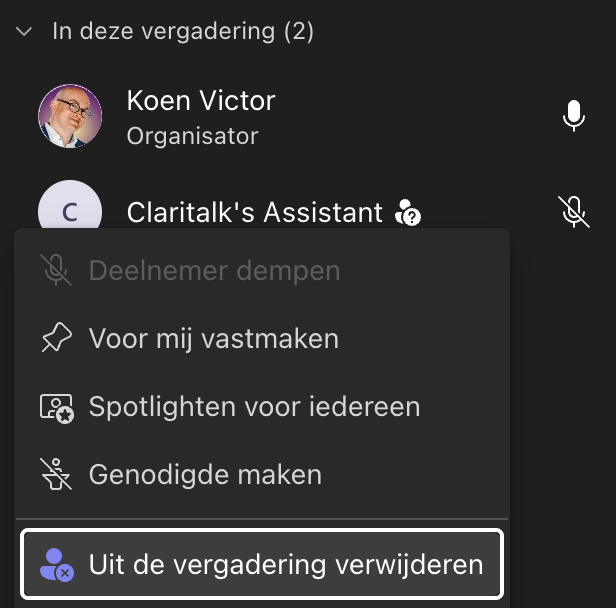
In the Teams participants list: right-click on "Claritalk's Assistant" and select "Remove from meeting".
Multiple colleagues in the same meeting
If multiple colleagues from your organization are invited to the same meeting, one bot joins, not one per person. The notes are shared with the invited colleagues who use the bot.
What if you disconnect Outlook?
If you disconnect Outlook, the bot will no longer join your meetings that haven't started yet. Even if they were already scheduled. Claritalk will also delete the calendar items it had loaded from your Outlook.
| Situation when disconnecting | Does the bot join? |
|---|---|
| Meeting that hasn't started yet | No |
| Meeting that hasn't started yet, with an invited colleague who also uses the bot | Yes, for that colleague |
| Meeting that is currently ongoing | The bot stays until the end |
| Meeting that you scheduled yourself with the bot in Claritalk | Yes, that remains |
Reports from meetings that have already ended are preserved.
Enable and disable per organization
The Teams bot is enabled or disabled at the organization level. If it's off, the bot won't join for anyone in the organization, even if users have connected Outlook. If it's on, it applies to every user with a connected Outlook calendar.
During the rollout, Claritalk enables or disables the bot at the organization's request. If you want to change this for your organization, please contact your Claritalk contact person or support.
Frequently asked questions
On what basis does Claritalk determine which meetings the bot joins?
The bot joins Teams meetings in your connected Outlook calendar that you are invited to or that you organize yourself, as long as the bot is enabled for your organization. Meetings without a Teams link and meetings you have declined are skipped.
Can the bot only join if I actually participate?
No. If you are invited, the bot joins. If you decline the meeting and it disappears from your calendar, it won't join. Claritalk doesn't check whether you are present at that time.
That behavior is predictable, and it helps those who join later: you can read what you missed. If you don't plan to participate, it's best to decline the meeting.
Does Claritalk monitor meetings in advance and schedule the bot in advance?
Yes. Claritalk reads your calendar and schedules the bot in advance. If the meeting is canceled, or you decline it and it disappears from your calendar, the bot is canceled.
What happens if someone disconnects the Outlook integration afterward?
Then the bot will no longer join meetings that haven't started yet, unless a colleague who is also invited uses the bot. A meeting that is currently ongoing will simply continue. See Disconnect Outlook.
Is recording happening while the bot is in the waiting room?
No. Transcription only starts after the bot is admitted to the meeting.
Can we turn off the bot for our entire organization?
Yes, the bot is enabled or disabled per organization. Please contact your Claritalk contact person or support@claritalk.com.