
AdminPulse file synchronization in Claritalk
≈ 5 min read
Overview
File synchronization converts each contact from AdminPulse into a file in Claritalk and then automatically keeps the data up to date. You enable it in the settings of the AdminPulse integration in the Marketplace.
What you need:
- A Claritalk account for which the AdminPulse integration is available.
- Your own AdminPulse account. The integration is personal: each user connects their own account.
Good to know before you start:
- Claritalk only retrieves the contacts that your AdminPulse account is allowed to see.
- Synchronization runs automatically every night at 02:00. You can also start it manually.
- Whoever synchronizes becomes the owner of the new files. It is therefore preferable to let only one person or a limited number of people synchronize, and then share the files with the correct teams.
Connect AdminPulse
You will find the integration under My settings, on the Marketplace tab.
- Click your name in the top right and select My settings.
- Open the Marketplace tab.
- Find the AdminPulse card. If the status is not connected, click Connect.
- Sign in to AdminPulse with your own account and grant Claritalk the requested permission.
- You return to Claritalk. The card now shows connected.
- Click Manage to open the integration settings.
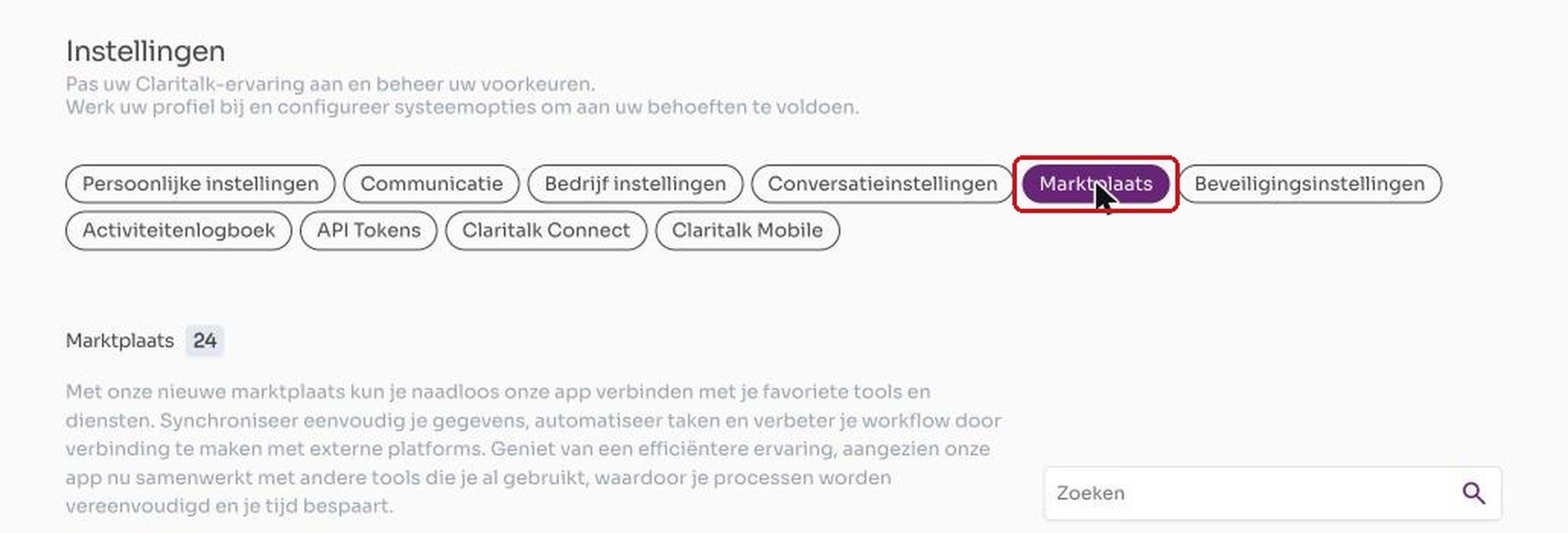
Step 2: the Marketplace tab under My settings.
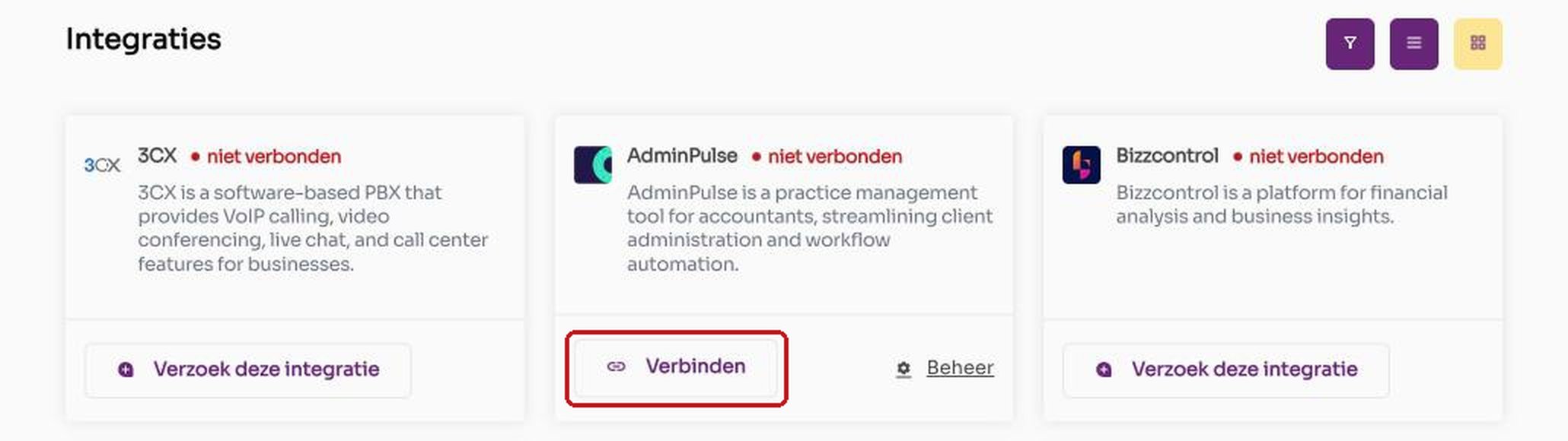
Step 3: the AdminPulse card with the Connect button.
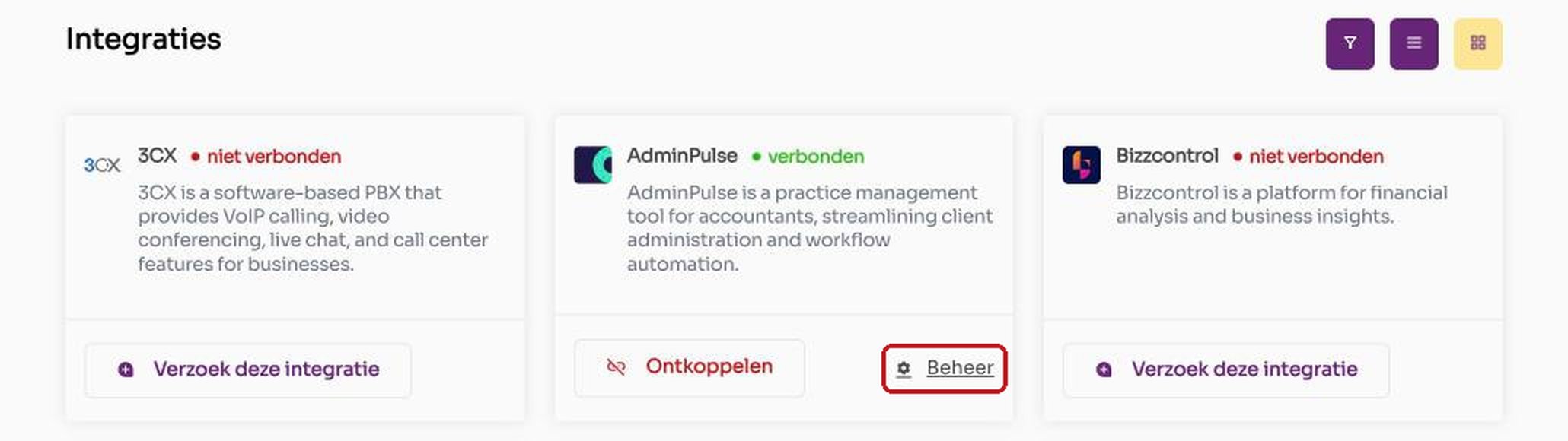
Steps 5 and 6: the status is connected; Manage opens the settings.
Enable file synchronization
After connecting, synchronization is off. You turn it on with a single switch on the Configuration tab of the AdminPulse integration.
- Open the Configuration tab on the AdminPulse page. This tab only appears once the integration is connected.
- Scroll to the Automated process section, below the custom actions.
- Turn on the switch to the right of Synchronize AdminPulse files. The label next to the title shows the status; before enabling it says Disabled.
- Click Run process to start an initial synchronization immediately. This button is gray as long as the process is disabled. If you skip this step, the first synchronization will run the next night at 02:00.
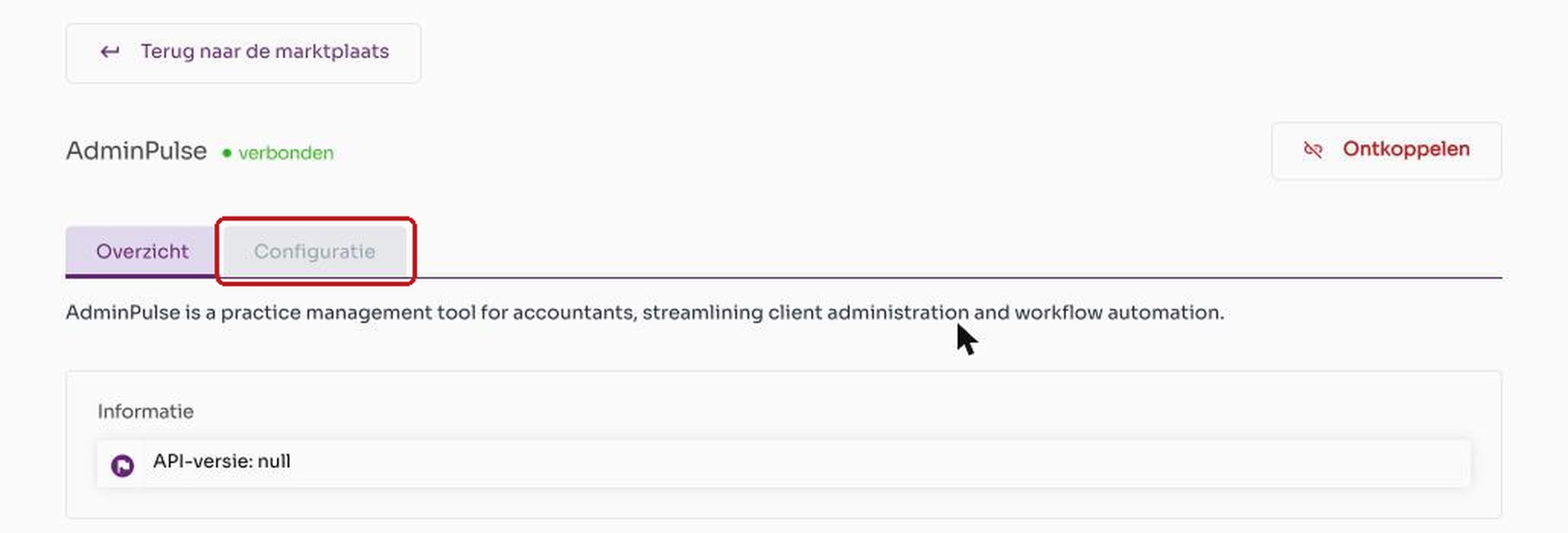
Step 1: the Configuration tab on the AdminPulse page.

Steps 3 and 4: the switch on the right enables synchronization; Run process starts it manually. The screenshot shows the state before enabling.
What the synchronization does
For each contact from AdminPulse, Claritalk searches for a matching file within your organization, in this order:
- A file already linked to this AdminPulse contact.
- A file with the same tax ID number.
- A file with the same name. Claritalk does not automatically merge, but proposes a merge that a user must approve.
- No matching file: Claritalk creates a new file.
Claritalk transfers the name, tax ID number, phone numbers, email addresses, and website. Contact information already known is not deleted if AdminPulse does not send it for a while.
Effect on access
Synchronization adds access, but never removes it.
| Situation | Effect in Claritalk |
|---|---|
| A new file is created | Whoever synchronizes becomes the owner. No one else has access until you share the file. |
| The file already exists | Whoever synchronizes becomes a member if they did not already have access. No email is sent. |
| Someone is responsible or staff member of the contact in AdminPulse | No effect on access. |
| You change the responsible person in AdminPulse | Access remains unchanged. Adjust it yourself in Claritalk. |
| A contact is archived or deleted in AdminPulse | The file remains, with its conversations. |
| You delete a file that still exists in AdminPulse | The next synchronization creates an empty file again. |
Other options
The Configuration tab contains three custom actions in addition to file synchronization. You enable or disable each action separately and can limit it to one conversation topic.
| Option | What it does | Extra settings |
|---|---|---|
| Upload PDF report to AdminPulse | Uploads the conversation report to AdminPulse. | Conversation topic. Upload settings: Upload PDF report and Upload formatted text, each separately on or off. |
| Create a time entry in AdminPulse | Creates a time entry in AdminPulse based on the duration of the conversation. | Conversation topic. Price list item on which the time is booked. |
| Create tasks in AdminPulse | Creates tasks in AdminPulse based on the tasks in the conversation. | Conversation topic. |
| Synchronize AdminPulse files | Regularly synchronizes AdminPulse files with Claritalk. | Switch on or off. Run process for a manual start. |
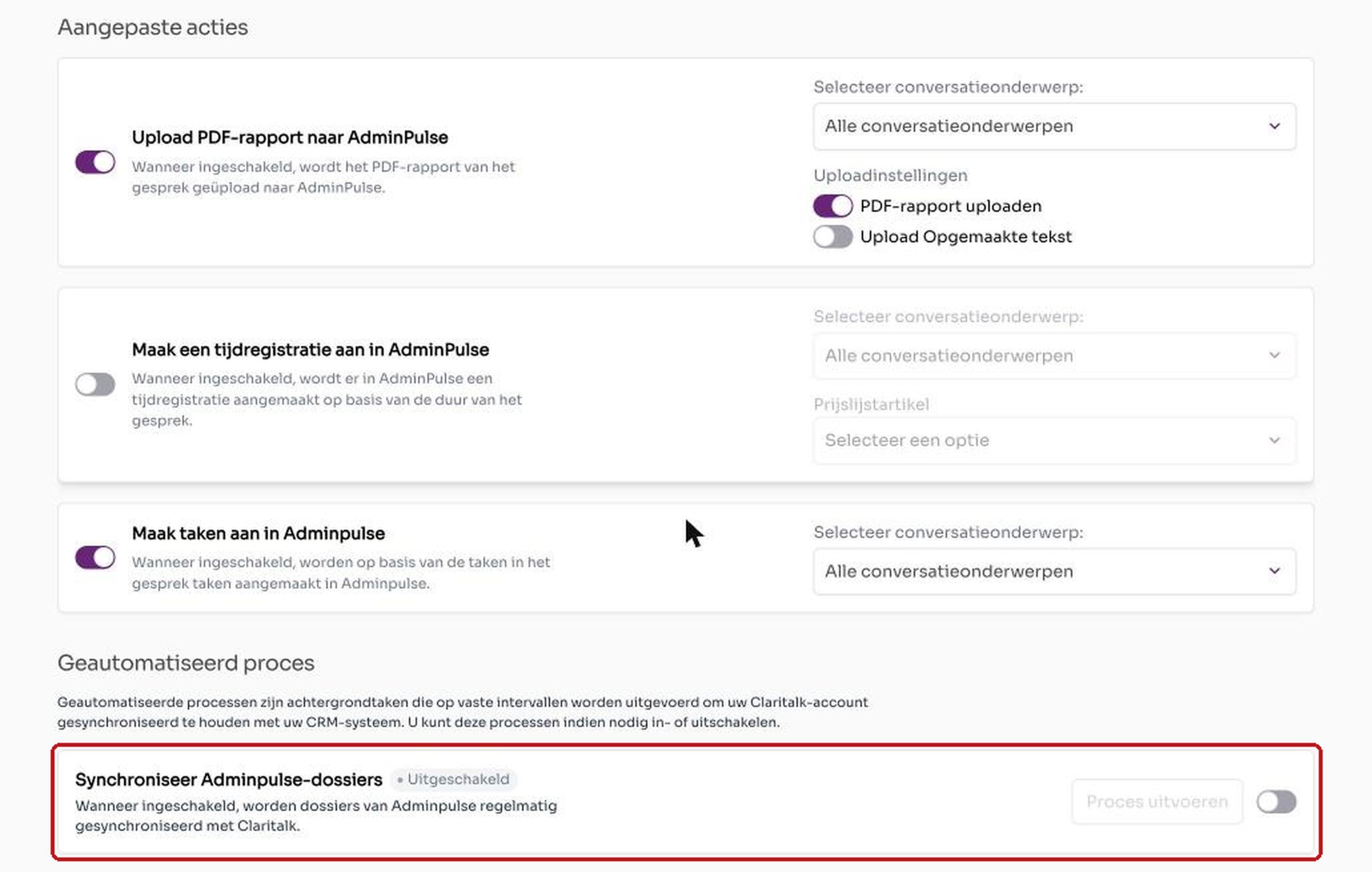
In the screenshot, PDF upload and tasks are on, and time entry and file synchronization are off. These are the default settings immediately after connecting.
Choose conversation topic
With the Select conversation topic dropdown, you determine which conversations an action applies to. All conversation topics is the default choice. If you select one topic, the action only runs for conversations with that topic.
Outside the Configuration tab
- Choose a contact when scheduling: you link the conversation to an AdminPulse contact. After completion, an interaction appears on that contact's timeline, with the reports and to-do's.
- Forward later: if you did not choose a contact, you send the information later via the CRM block at the conversation. Forwarding multiple times can create duplicate data in AdminPulse.
- Disconnect: use the Disconnect button in the top right of the AdminPulse page to break the integration.
Check and troubleshoot
After a successful synchronization, your AdminPulse contacts appear as files under Files in the left menu.
| Problem | Solution |
|---|---|
| Message that authentication failed | The access right has expired or been revoked. Go to the Marketplace and reconnect AdminPulse. |
| A contact is not in the list | Disconnect and reconnect the integration so the data is retrieved again. Also check that your AdminPulse account is allowed to see the contact. |
| A colleague does not see a synchronized file | Synchronization only grants access to whoever synchronizes. Share the file with the colleague or with a team. See also Access to files in Claritalk. |
| A merge proposal appears | A file with the same name already existed. Approve or reject the merge. |
| A deleted file comes back | The contact still exists in AdminPulse. Synchronization creates the file again. |
If you cannot figure it out, email support@claritalk.com with the name of the integration.
Resources
- Integration overview
- Access to files in Claritalk
- Connect integrations via the Marketplace
- Screens from app.claritalk.com, My settings, Marketplace tab