
Manage files
≈ 2 min read
A file bundles all conversations, reports and tasks around one customer or topic. Users create files themselves in the app; in the Admin Center you manage ALL files of your organization, including those of colleagues.
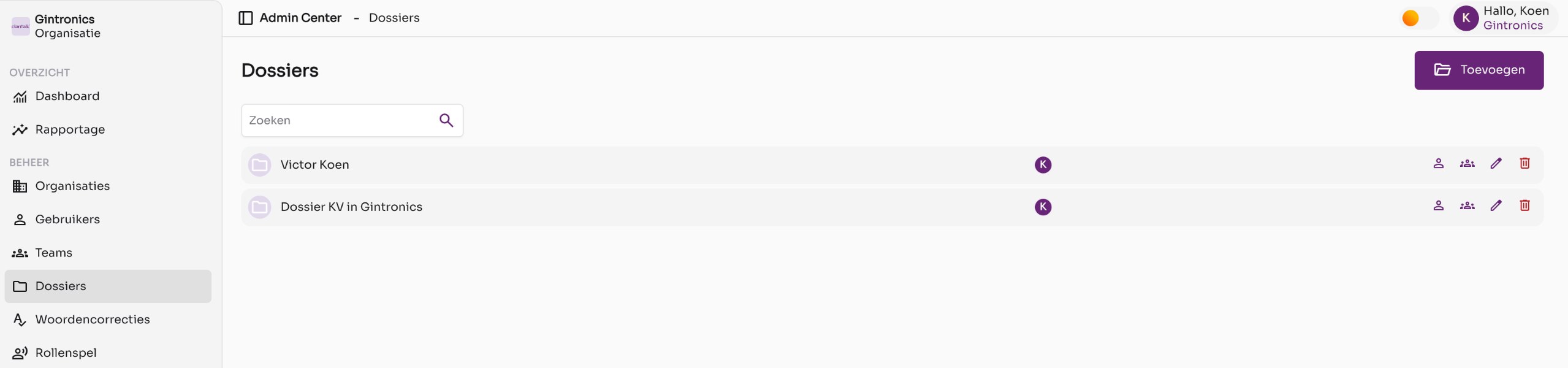
Create a file
- Open Files
Click on Files in the left menu. Use the search field to quickly find a file.
- Click Add
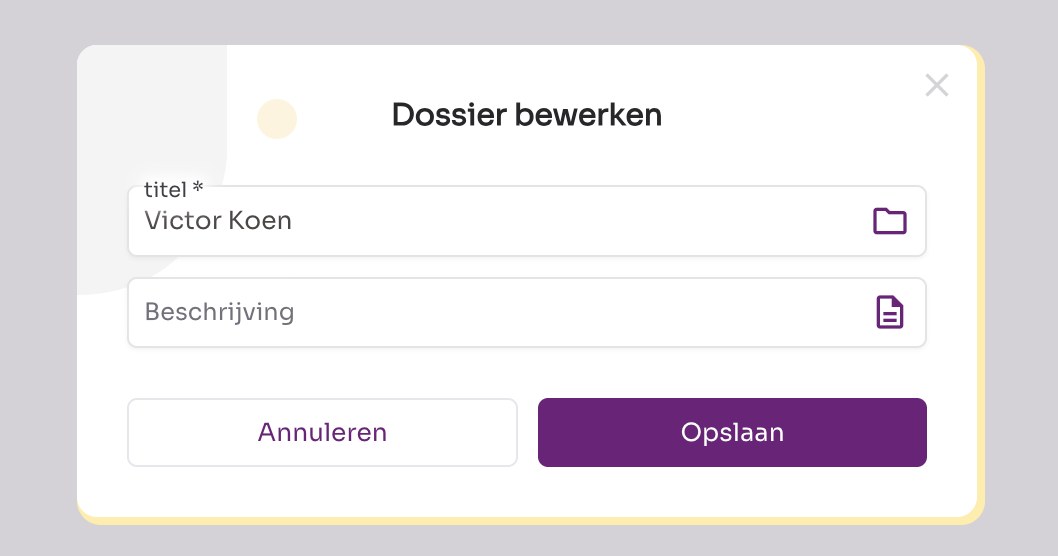
Enter a title (required) and optionally a description. Click Save.
Give users access to a file
- Click Manage members
That is the first icon (a person) on the right in the file's row.
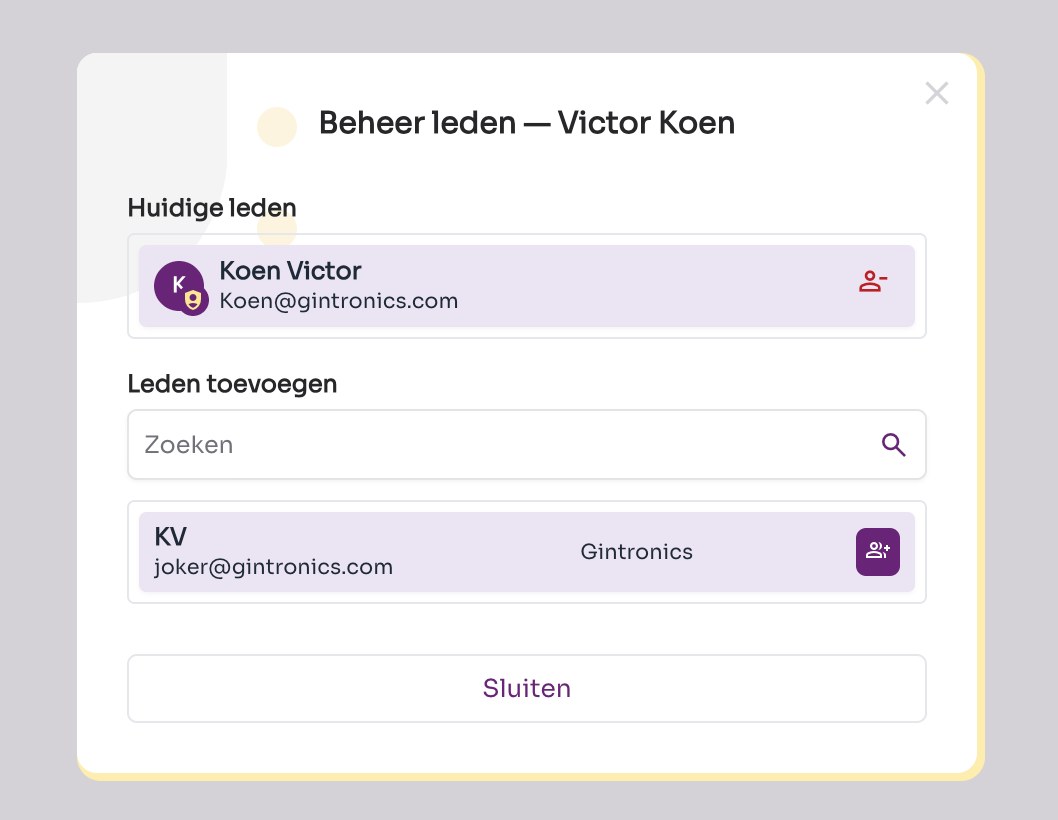
Manage members of a file. - Add a member
Under Add members search for the user and click the purple button next to the name.
- Remove a member
For a current member, click the red icon next to the name. You can identify the file owner by the crown next to the avatar.
Link a team to a file
- Click Manage teams
That is the second icon (two people) on the right in the row.
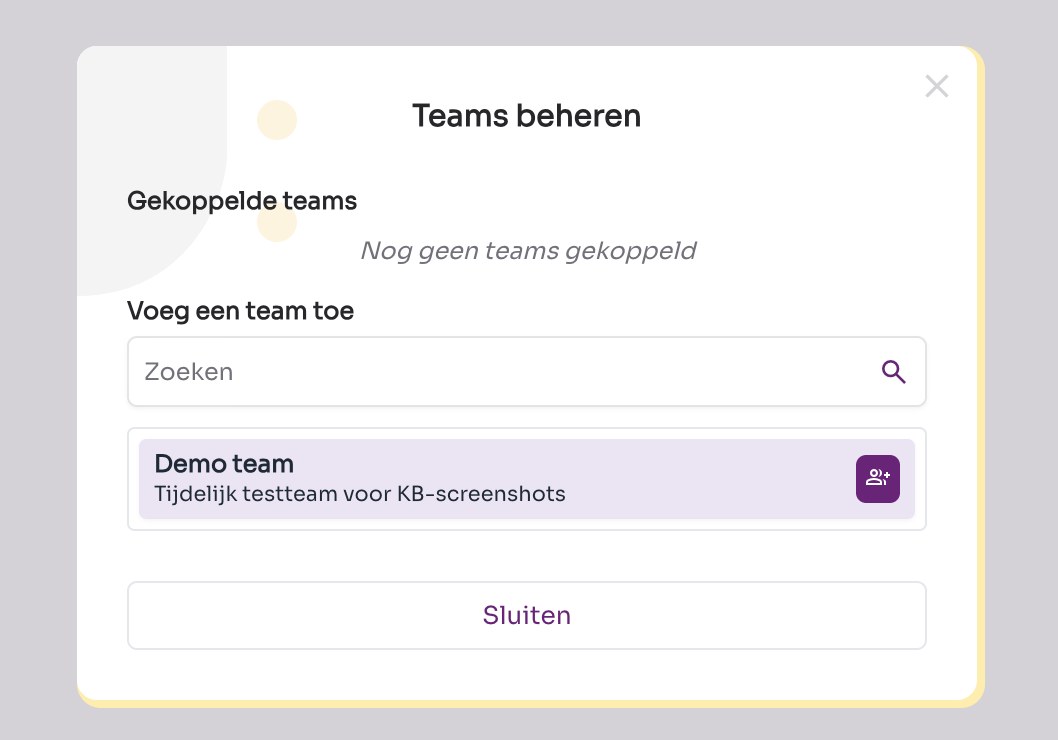
Link a team to a file. - Choose a team
Under Add a team you see the teams that are not yet linked. Click the purple button next to the team. All team members will have access to the file.
Edit or delete a file
- With the pencil you edit the title and description.
- With the red trash can you delete the file with all conversations in it.
Good to know
Deleting a file is permanent: all conversations, reports and tasks in the file will disappear. Data that has already been sent to a CRM or practice software will remain there.
- For more information on how access to files works, what roles exist and how synchronization with practice software affects access, read the article Access to files in Claritalk in the Use section.
- If no teams exist yet, the Manage teams window will indicate that all organization teams are already linked. First create a team via Manage teams.