
Managing Teams
≈ 2 min read
A team is a group of users. The biggest advantage: you give an entire team access to a file at once. When a new colleague joins the team, they automatically gain access to all files of that team.
Creating a team
- Open Teams
Click Teams in the left menu. You will see the existing teams, each with a description and the avatar of the creator.
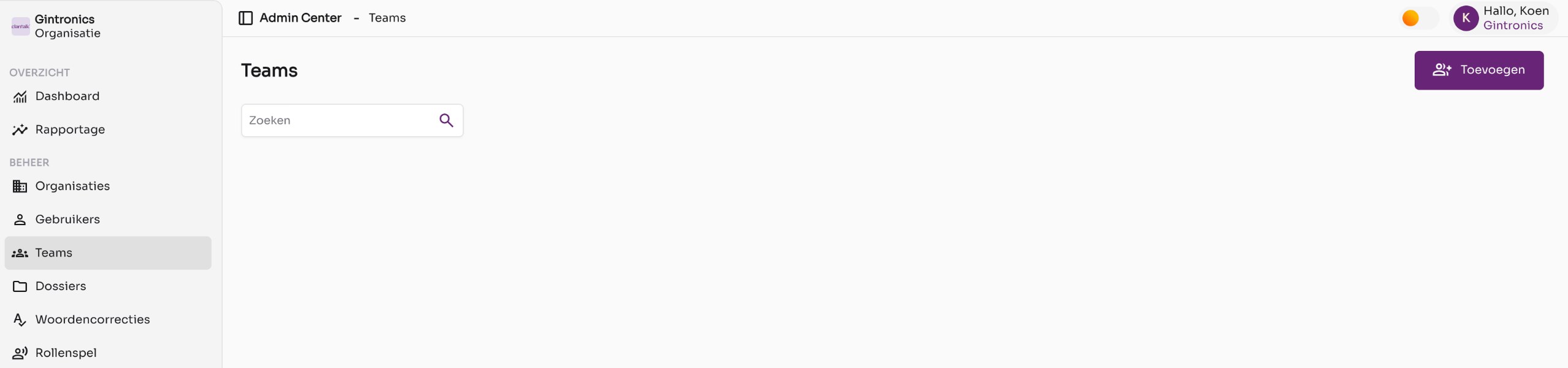
The team overview of an organization without teams. - Click Add
The Create a new team window opens. Give the team a name and optionally a description.
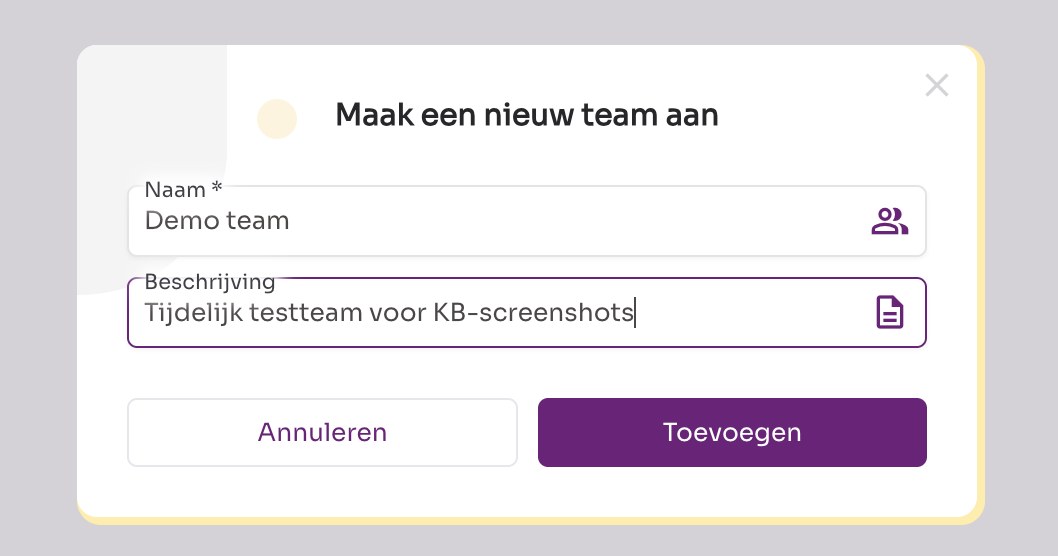
Creating a new team. - Click Add
The team appears in the overview. You become a member immediately.
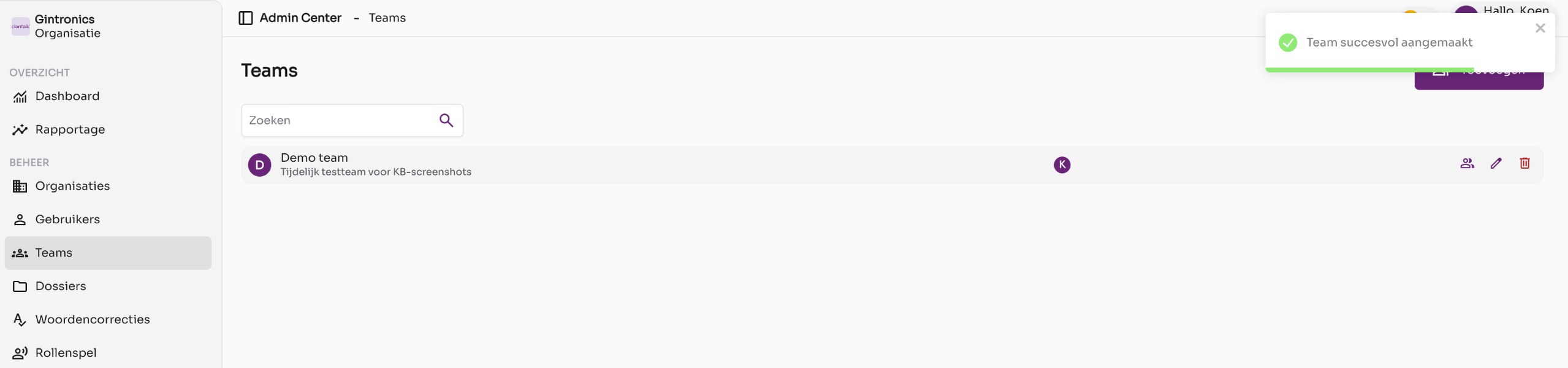
The new team in the overview, with three action buttons on the right: members, edit, and delete.
Adding or removing members
- Click the members icon
On the right side of the team row is an icon with two people. The Manage members window opens.
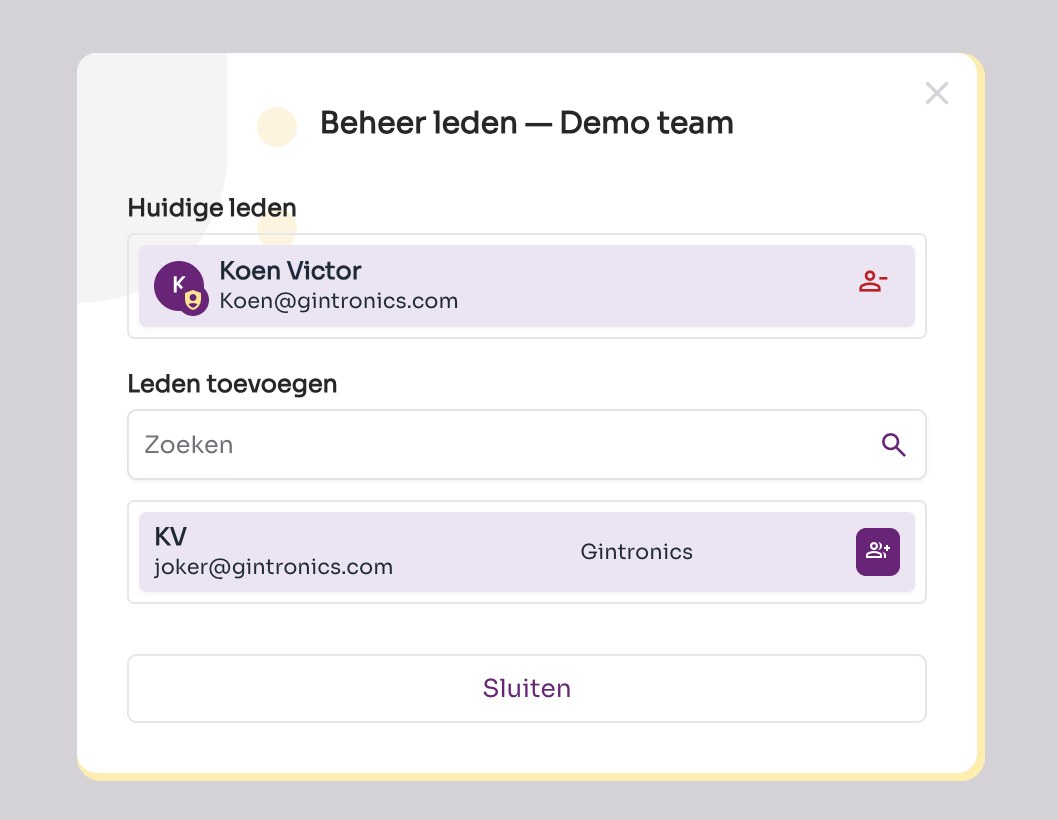
Managing members of a team. - Add members
Under Add members you search for a user and click the purple button next to the name. The user appears immediately under Current members.
- Remove a member
Click the red icon next to the name for a current member. The member loses access to the files shared via this team.
- Close the window
Changes are saved immediately. Click Close.
Editing or deleting a team
- With the pencil you can edit the name and description.
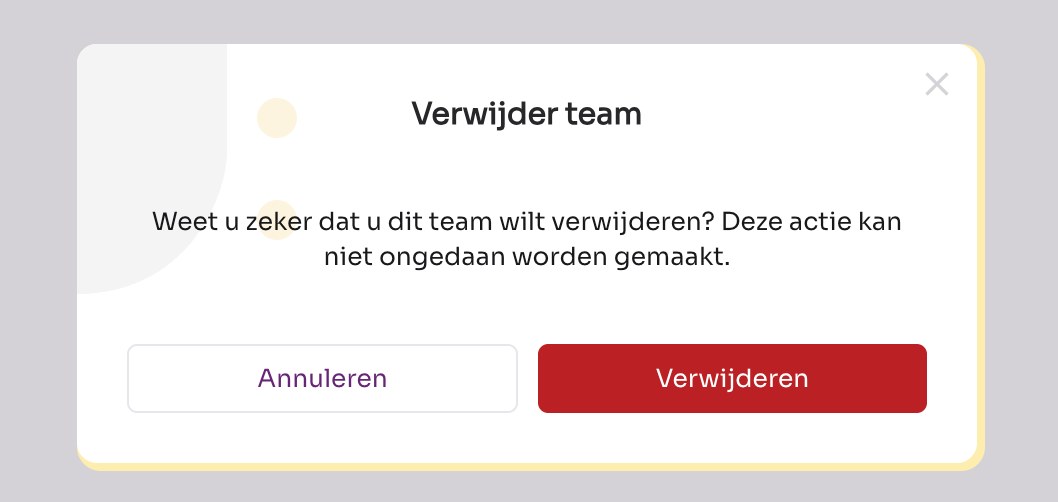
- With the red trash bin you delete the team. Confirm in the Delete team window.
Good to know
Deleting a team cannot be undone. Members lose access to files that were shared only via this team. The users themselves remain.
- To link a team to a file, go to Managing files.
- A user can be a member of multiple teams.