Manage organisation settings
≈ 4 min read
All settings that apply to your entire organisation are located on one page. Every toggle is saved immediately when you switch it.
How to open the organisation settings
- Open Organisations
Click Organisations in the left menu. You'll see the organisations you manage, with their logos. Use Search and Sort to find the right one quickly.
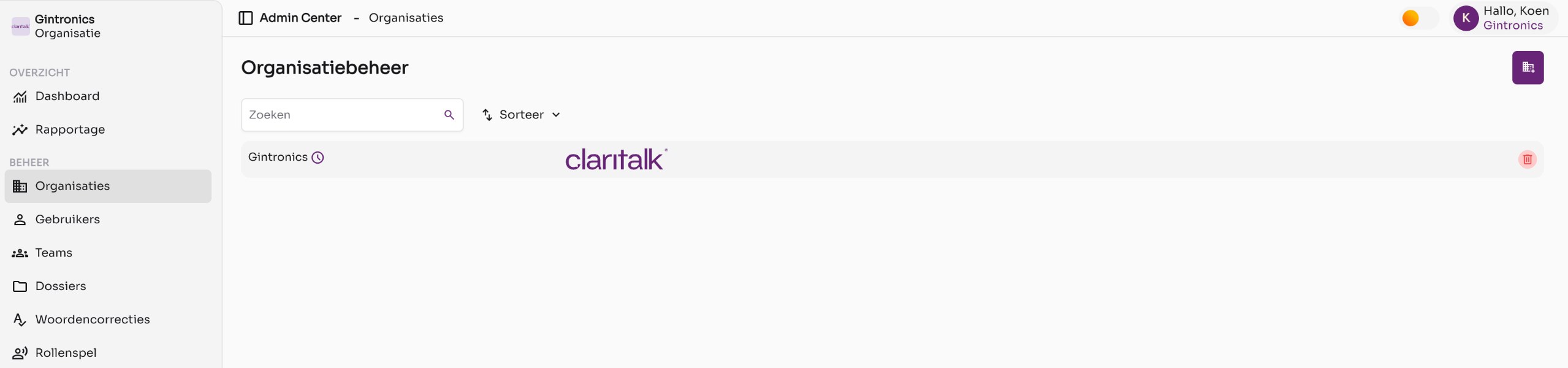
The organisation management with one organisation. - Click on the organisation name
You'll reach the details page. On the left are the organisation information and the function manager, on the right are the optional modules, the terminology list, the logo and the PDF personalisation.
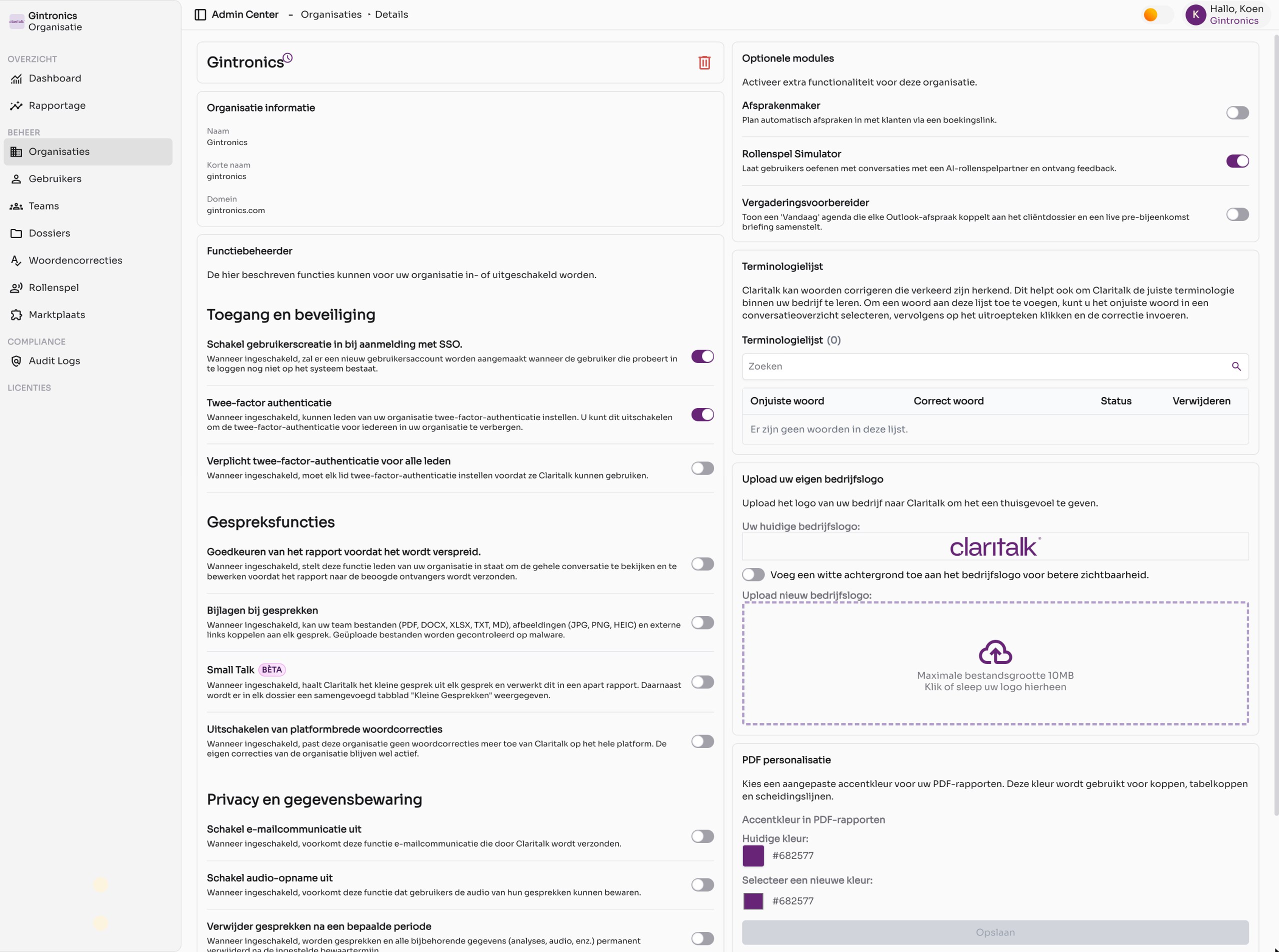
The details page of an organisation.
Organisation information
At the top left are the name, the short name and the domain of your organisation. The domain determines, among other things, which email addresses are automatically linked to your organisation when logging in with SSO.
Function manager: access and security
| Setting | What it does |
|---|---|
| Enable user creation on SSO login | A colleague who logs in via SSO but doesn't have an account yet automatically gets an account. |
| Two-factor authentication | Members can set up two-factor authentication in their profile. Turn this off to hide the option for everyone. |
| Require two-factor authentication for all members | Every member must set up two-factor authentication before using Claritalk. |
Function manager: conversation features
| Setting | What it does |
|---|---|
| Approve the report before it is distributed | Members view and edit the full report before it goes to the recipients. |
| Attachments to conversations | Members can attach files (pdf, docx, xlsx, txt, md), images (jpg, png, heic) and external links to a conversation. Uploads are checked for malware. |
| Small talk (beta) | Claritalk extracts the informal part from each conversation and puts it in a separate report. A combined Small talk tab appears in each file. |
| Disable platform-wide word corrections | Claritalk's general word corrections are no longer applied. Your organisation's own corrections remain active. |
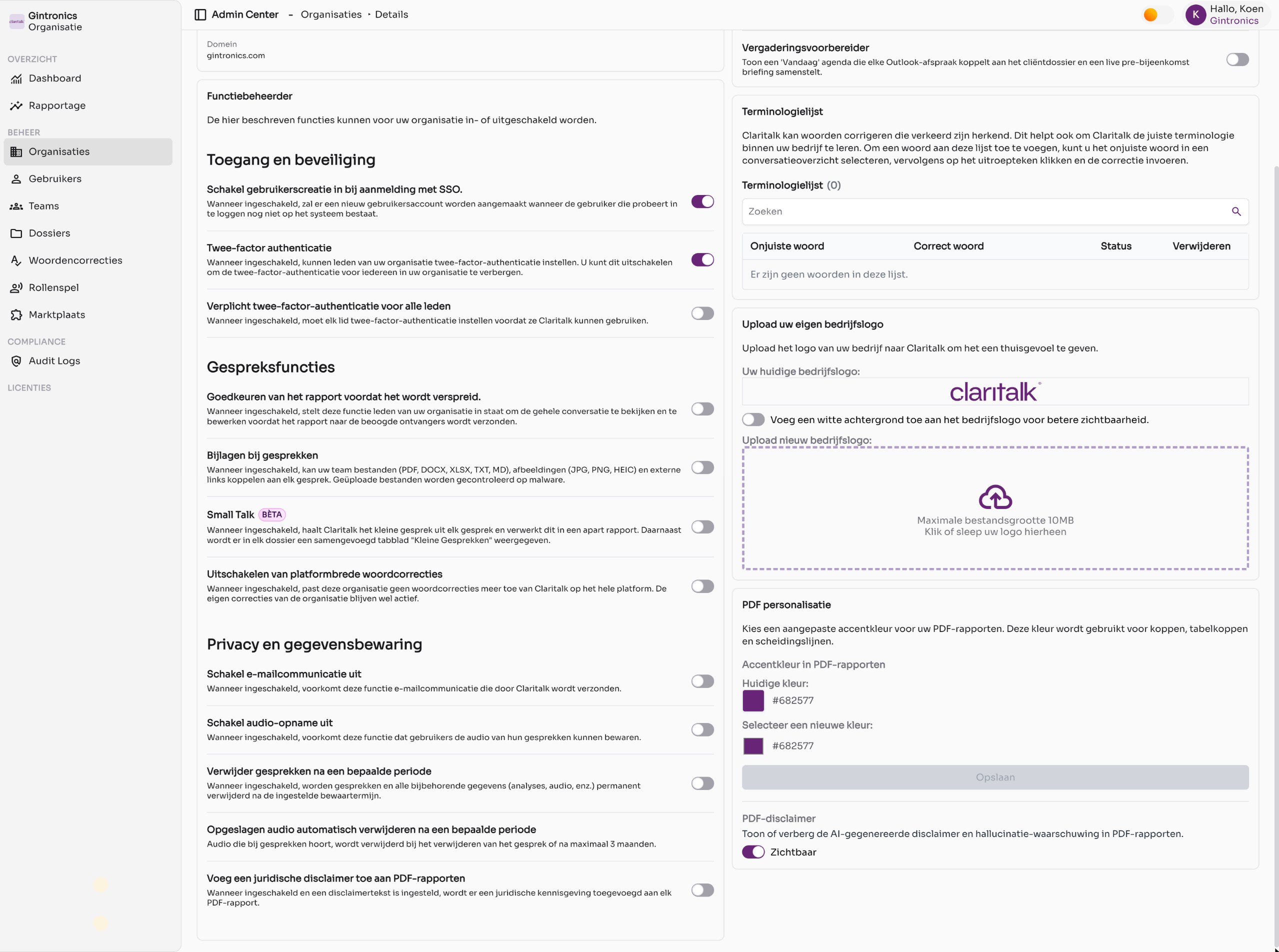
Function manager: privacy and data retention
| Setting | What it does |
|---|---|
| Disable email communication | Claritalk no longer sends emails to your users. |
| Disable audio recording | Users cannot save the audio of their conversations. |
| Delete conversations after a certain period | Conversations and all associated data (analyses, audio, etc.) are permanently deleted after the set retention period. |
| Automatically delete saved audio | Audio is deleted when the conversation is deleted, or at the latest after three months. |
| Add a legal disclaimer to PDF reports | Each PDF report receives a legal notice, if you have set a disclaimer text. |
Deleted conversations and audio cannot be recovered. Also read the article How long does Claritalk retain your data? in the Policy & privacy section before you set a retention period.
Optional modules
On the top right, you enable additional functionality for your organisation:
- Appointment maker – automatically schedule appointments with customers via a booking link.
- Role play simulator – let users practise with an AI role play partner and receive feedback. See Set up role play.
- Meeting preparer – shows a Today agenda that links every Outlook appointment to the client file and compiles a briefing.
Terminology list
The terminology list contains the words that Claritalk corrects for your organisation, for example product names or technical terms that are often misunderstood. You add words from a conversation report: select the incorrect word, click the exclamation mark and enter the correction. You approve suggestions from your team via Word corrections. In the list you can see the status of each word and delete it.
Company logo
- Upload your logo
Drag an image to the Upload new company logo box or click on it to choose a file. The maximum file size is 10 MB. The logo appears in the app and on your PDF reports.
- Optionally choose a white background
Does your logo have a transparent background and is it difficult to read? Then turn on Add a white background to the company logo.
PDF personalisation
- Choose an accent colour
Under Select a new colour you choose the colour for headings, table headings and dividing lines in PDF reports. Click Save.
- Show or hide the PDF disclaimer
With PDF disclaimer you determine whether the AI warning (about possible hallucinations) appears at the bottom of each PDF report. By default it is set to Visible.
Good to know
The red trash bin in the top right deletes the entire organisation, including all users and conversations. Only use it in consultation with Claritalk support.
- Toggles are saved immediately; only the PDF accent colour requires a click on Save.
- Settings at organisation level override the personal settings of users. For example, if you disable audio recording for the organisation, no user can save audio anymore.