The Admin Center: Overview
≈ 2 min read
The Admin Center is where you manage everything behind the scenes of Claritalk: your organization settings, users, teams, files, integrations, and audit logs. You have access to it if you have the organization administrator role.
How to open the Admin Center
- Sign in as an organization administrator
Only users with the organization administrator role see the Admin Center. If you don't have that role, ask an administrator in your organization to assign it to you (see Managing Users).
- Open your profile menu
Click your name in the top right of Claritalk. A menu opens with My Settings, Admin Panel, Help Center, Invite a Friend, and Sign Out.
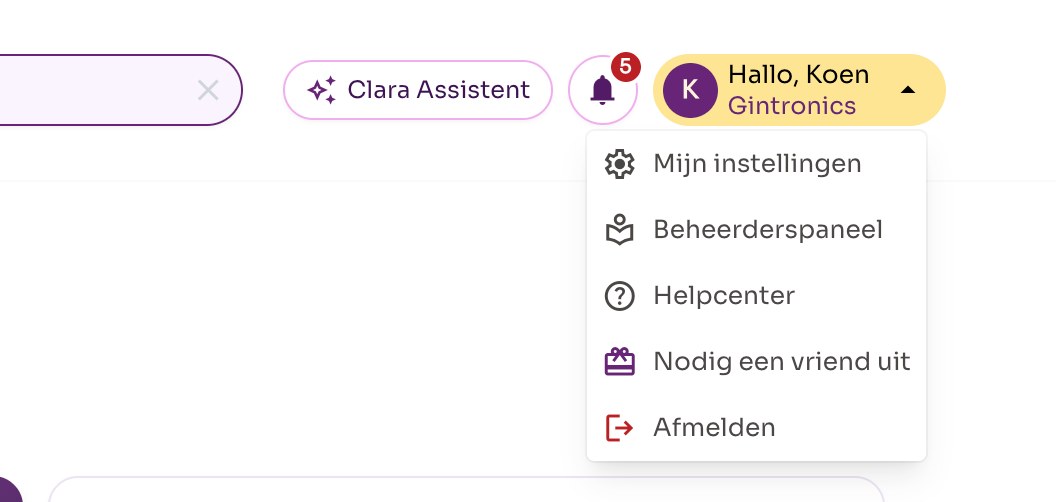
The profile menu in the top right. Administrators see the Admin Panel option here. - Choose Admin Panel
Click Admin Panel. You arrive at the Admin Center dashboard. The navigation menu is on the left, at the top the breadcrumb Admin Center – Dashboard. You can also go directly to: app.claritalk.com/admin.
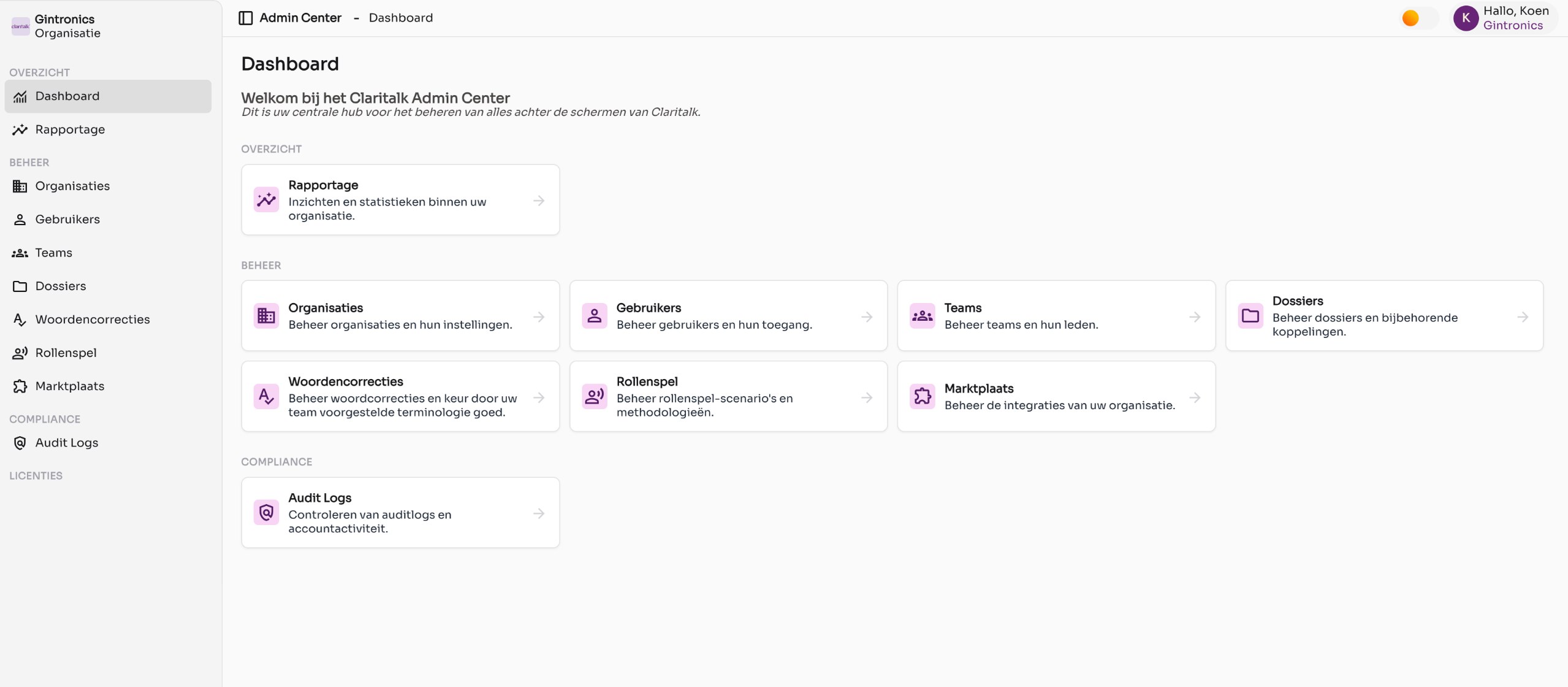
The Admin Center dashboard with tiles for each section. - Return to the regular app
Click your name in the top right of the Admin Center and choose Claritalk Web. You'll also find Logout there.
The sections of the Admin Center
The menu on the left is divided into four groups. Each group has its own article with step-by-step instructions.
| Section | What you do there | Article |
|---|---|---|
| Dashboard | Home page with a tile for each section. | – |
| Reporting | Usage statistics for your organization or a single user. | View Reporting |
| Organization | Organization settings: security, conversation features, privacy, modules, logo, and PDF layout. | Manage Organization Settings |
| Users | Invite users, assign roles, adjust settings, and delete. | Manage Users |
| Teams | Create teams and add members. | Manage Teams |
| Files | Create files and determine which users and teams have access. | Manage Files |
| Word Corrections | Approve or reject word corrections suggested by your team. | Approve Word Corrections |
| Role Play | Practice scenarios and methodologies for the role play simulator. | Set up Role Play |
| Marketplace | Connect integrations with your CRM or practice software. | Connect Integrations via the Marketplace |
| Audit logs | Who did what and when, up to 365 days back. | View Audit Logs |
| Licenses | Overview of your licenses (visible to administrators with billing rights). | – |
Good to know
- At the top left you see which organization you're working in. If you manage multiple organizations, you can switch between them there.
- Every change you make in the Admin Center is recorded in the audit logs.
- Questions about the Admin Center? Email support@claritalk.com.